- Look at the blue bar at the top of the screen
- Click on “Billing | Payment“
- Click on New Invoice
- Select the Customer or create a new one with the PLUS-Button like here described
- Select “Standard invoice“
- Set the “Invoice date” (today or in the future)
- Set the “Payment terms“
- Select the “Payment method“
- Select the “Bank Account“
- Select the “Project“
- Press the button “Create Draft” at the bottom of the screen
On the next screen:
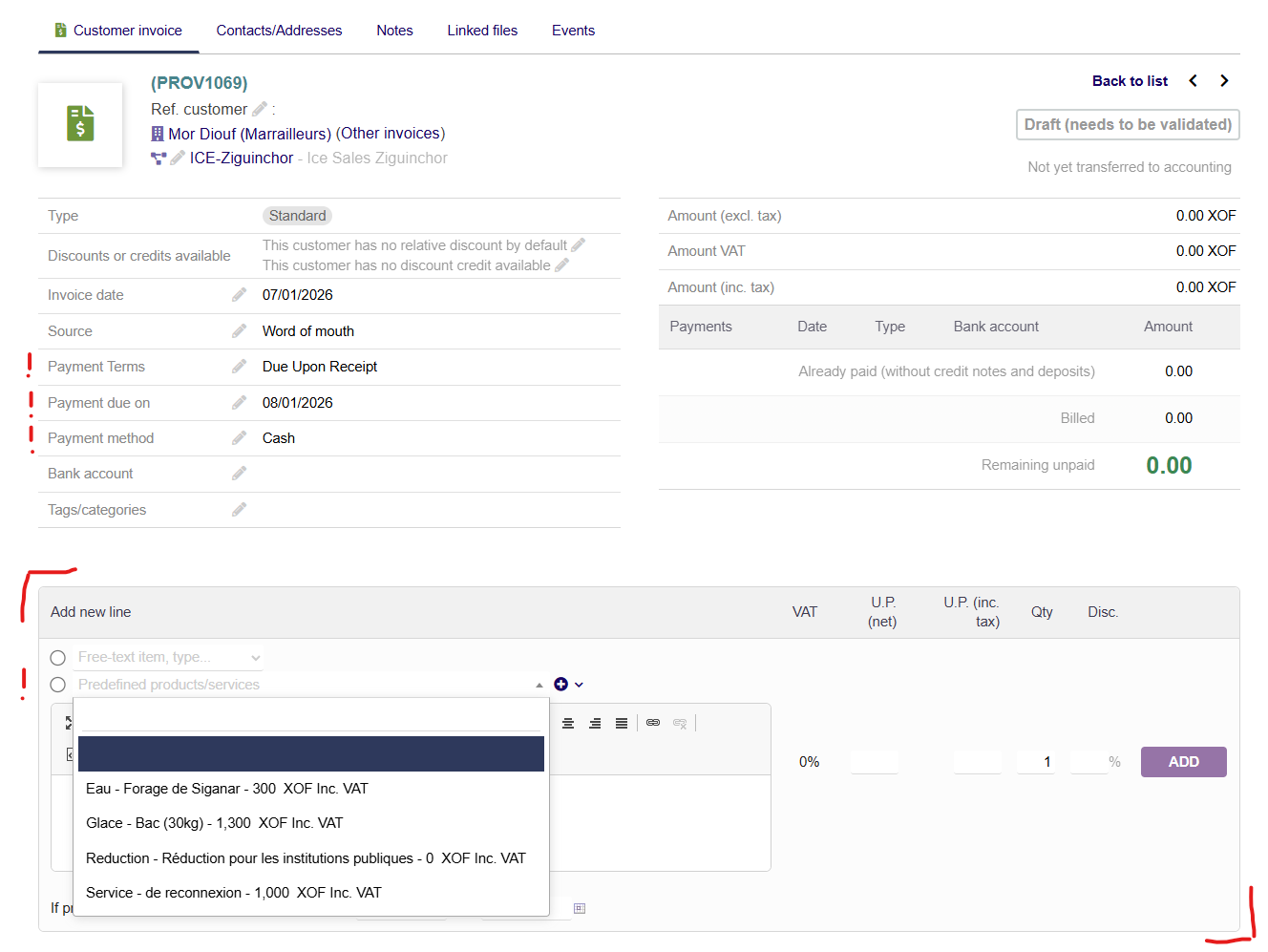
- Set the “Payment Terms” -> Due Upon Receipt, 14 days etc.
- Set the “Payment due on” to the desired date -> No payment by this date means that the payment will be overdue and the invoice will be marked as “overdue”
- Optional: Set the “Payment method“
- Add the product in the “Add new line” field by selecting the desired product from the drop-down list in the second circle
- The price is prefilled, but make sure it is the right one
- At “Qty” set the correct amount of material
- Press the “ADD” button
- If necessary, add another product
- Otherwise, click on the “Validate” button and confirm the following question.
And so the invoice is created and valid.


